
Present and share
Present a map Pro
Section titled “Present a map Pro”-
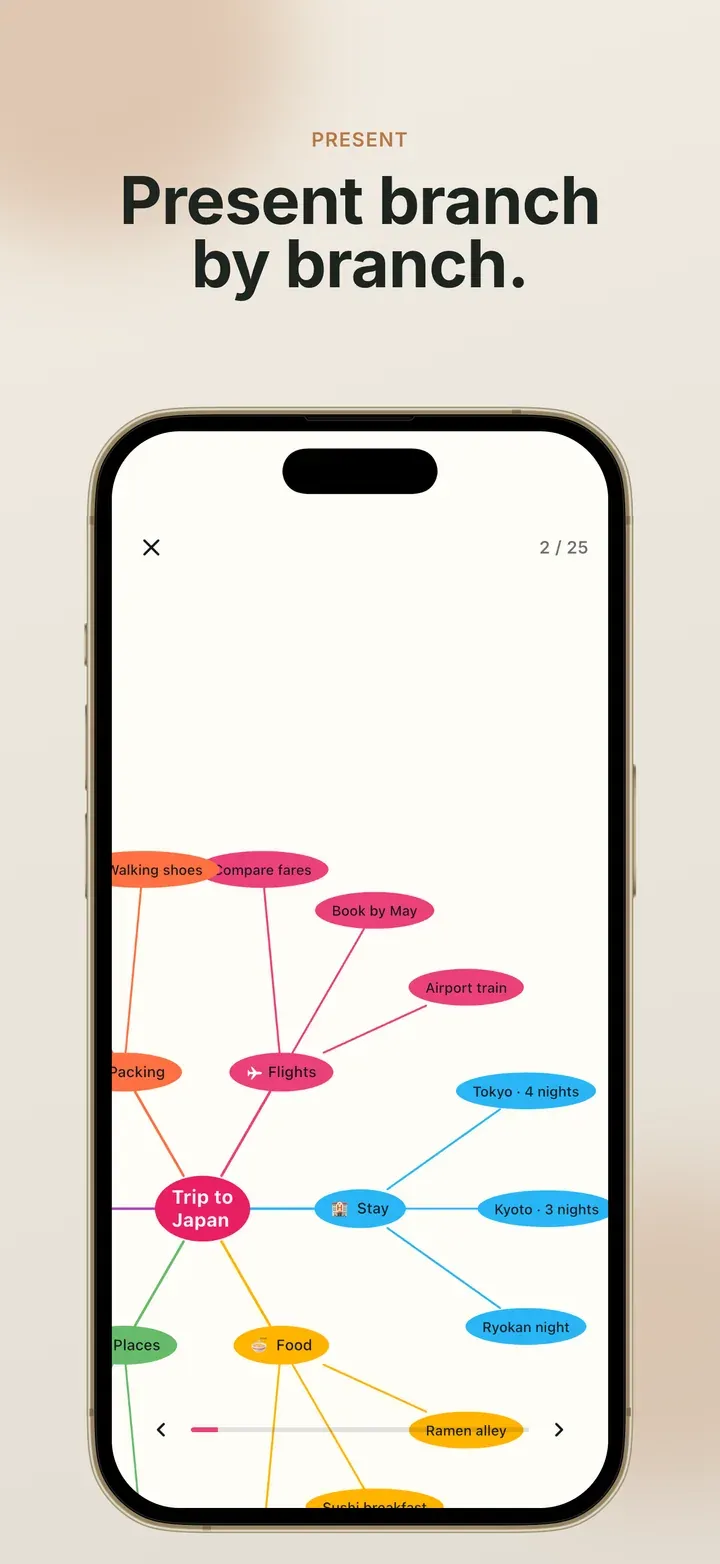
Open the map and tap ⋮ → Presentation.
The map fills the screen and the first branch is framed.
-
Tap the right side of the screen to go to the next topic, and the left side to go back. The view glides to each topic and its branch in turn.
-
Watch the bar and the counter at the bottom to see how far through you are. When a topic has a note, it appears on a card below the map.
-
Tap ✕ to finish, or use your device’s back gesture.
You can still pinch to zoom and drag to look around while you present.
Send a picture of the map
Section titled “Send a picture of the map”- Tap ⋮ → Share & export → Image (PNG).
- Choose where it goes in the share sheet.
The image is cropped to the map and uses its colours and spacing. Selection highlights are never included. On the free version the image is at 1× with a small mark. Pro removes the mark and goes up to 4×.
Print or send a PDF Pro
Section titled “Print or send a PDF Pro”- Print opens the system print dialog. Choose a printer, or Save as PDF.
- PDF makes a file with the whole map fitted on the first page, and the full outline, notes included, on the pages after.
Send the text
Section titled “Send the text”For an email, a chat or a document, Share as text sends the outline straight to another app, and Text outline saves it as a file. Both are free.
To paste into something that understands formatting, use Markdown Pro. For a page anyone can open in a browser, use HTML outline Pro. It is a single file with pictures included, in the map’s colours.
Give someone the map itself
Section titled “Give someone the map itself”Export a Smart Mind backup Pro and send the file. The other person can open it in Smart Mind for free and gets their own copy to edit. Smart Mind doesn’t share maps between people or keep two copies in step, so changes they make stay on their device.
Related
Section titled “Related”- Share and export: every format in one table
- File formats
 Mind Map: Smart Mind
Made by MyGems · © 2026 MyGems