
Style and themes
Smart Mind styles a map at two levels. A theme sets the look of the whole map. Topic styles override the theme for the topics you pick. Changing the theme never wipes out the topic styles you have set.
Themes
Section titled “Themes”Open ⋮ → Stylesheet to pick one of eighteen built-in themes. Each sets the canvas colour, a palette for the branches, topic shapes and fills, connector style and fonts.
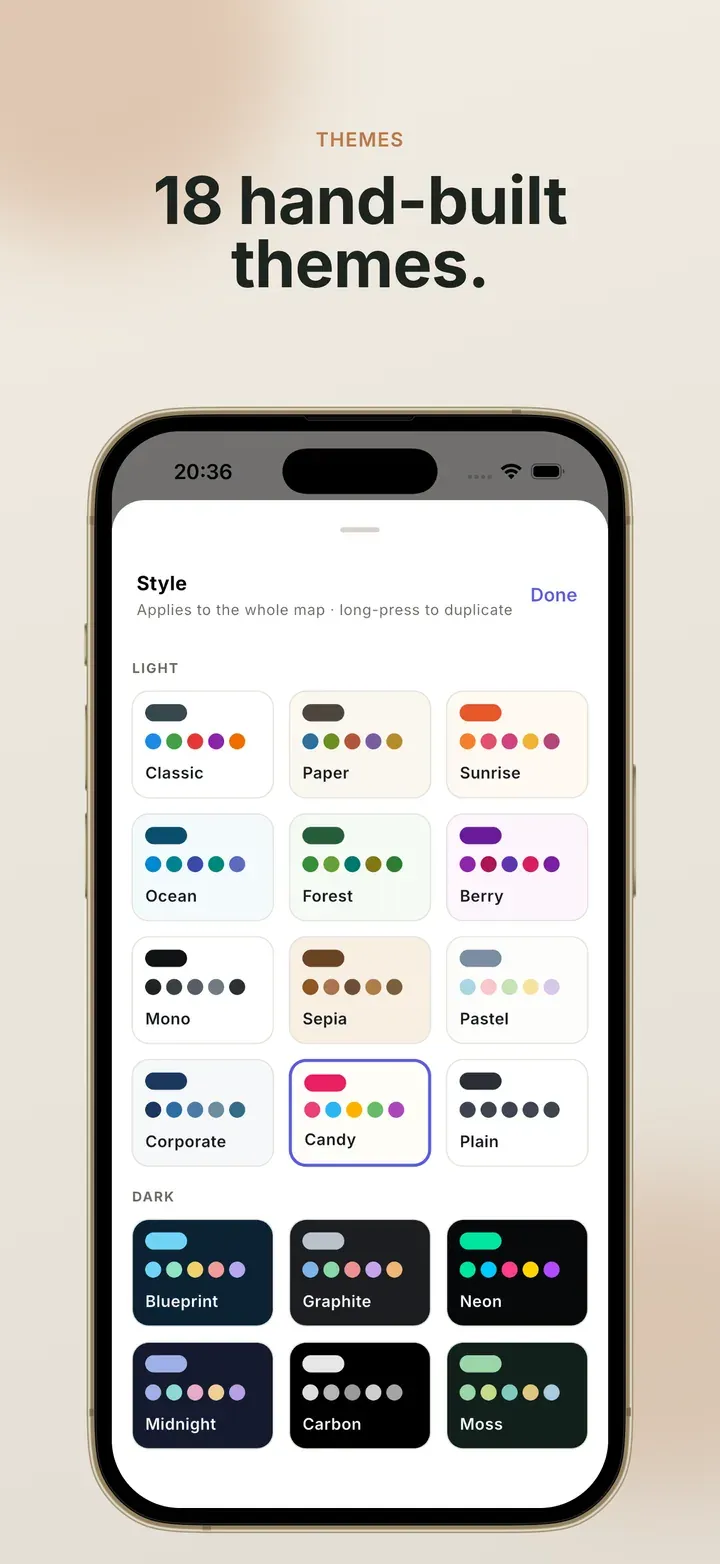
| Themes | |
|---|---|
| Free | Classic, Ocean, Midnight |
| Light Pro | Paper, Sunrise, Forest, Berry, Mono, Sepia, Pastel, Corporate, Candy, Plain |
| Dark Pro | Blueprint, Graphite, Neon, Carbon, Moss |
Midnight is dark and free on purpose. Someone using dark mode should never be stuck with a bright white map.
Text contrast is worked out automatically, so topic text stays readable on every theme, including your own.
Style a single topic
Section titled “Style a single topic”Select a topic and tap Style to change it on its own:
- Text: bold, italic, underline, strikethrough, size and alignment
- Shape: the outline the topic is drawn in
- Colour: fill, text and border
Select several topics first to change them all at once. Reset puts a topic back to the theme’s defaults.
Branch colours
Section titled “Branch colours”Every branch takes a colour from the theme’s palette. To change it, select a topic and pick a Branch colour. The topic and everything under it follow, including connectors and icons. Automatic hands the choice back to the theme.
Custom themes Pro
Section titled “Custom themes Pro”In the theme picker, long-press any theme and choose Duplicate and edit. You can change the canvas, whether it is light or dark, how topics are filled, their shape, the connector style, the central topic’s colour and each branch colour.
Custom themes are saved in the app, marked with an edit badge in the picker, and travel with your maps when you sync devices. If you delete a custom theme that a map is using, that map falls back to Classic.
Related
Section titled “Related”- Change layout and style: step by step
- Layouts: where topics go
- Free and Pro: which themes are included
 Mind Map: Smart Mind
Made by MyGems · © 2026 MyGems