
Organize
Everything on this page is free.
The library
Section titled “The library”Every map is a card in the library, with a thumbnail in the map’s own colours and its title. The maps you opened most recently come first. Tap ☆ on a card to star it, and starred maps get their own section at the top.
The ⋯ button on a card lets you rename, duplicate, move to a folder, export or delete the map. On a tablet with a trackpad, right-click a card to get the same menu.
Folders
Section titled “Folders”Tap New folder in the strip above your maps to make one, then use Move to folder on a map’s menu to file it. Tap a folder to open it.
Long-press a folder, or tap its name while you are inside it, to rename it, change its colour, or delete it. Deleting a folder never deletes the maps in it. They move back to the main library, and the confirmation tells you so.
Templates
Section titled “Templates”Tap New map to start blank or from a template:
- Project plan
- Meeting notes
- Brainstorm
- Weekly plan
- SWOT analysis
- Book notes
Each template comes with a layout and theme that suit it. A blank map uses the defaults you picked in Settings.
Search
Section titled “Search”The search box in the library finds maps by title or by any topic inside them.
Inside a map, tap the search icon or press ⌘F. Matching topics are highlighted,
and notes are searched too. Step through the matches with the arrows, and any
branch hiding a match opens by itself. Search ignores capital letters and
accents.
Outline view
Section titled “Outline view”⋮ → Outline view shows the same map as an indented list you can type into. It is often the fastest way to get a lot of ideas down, and changes show up on the map straight away.
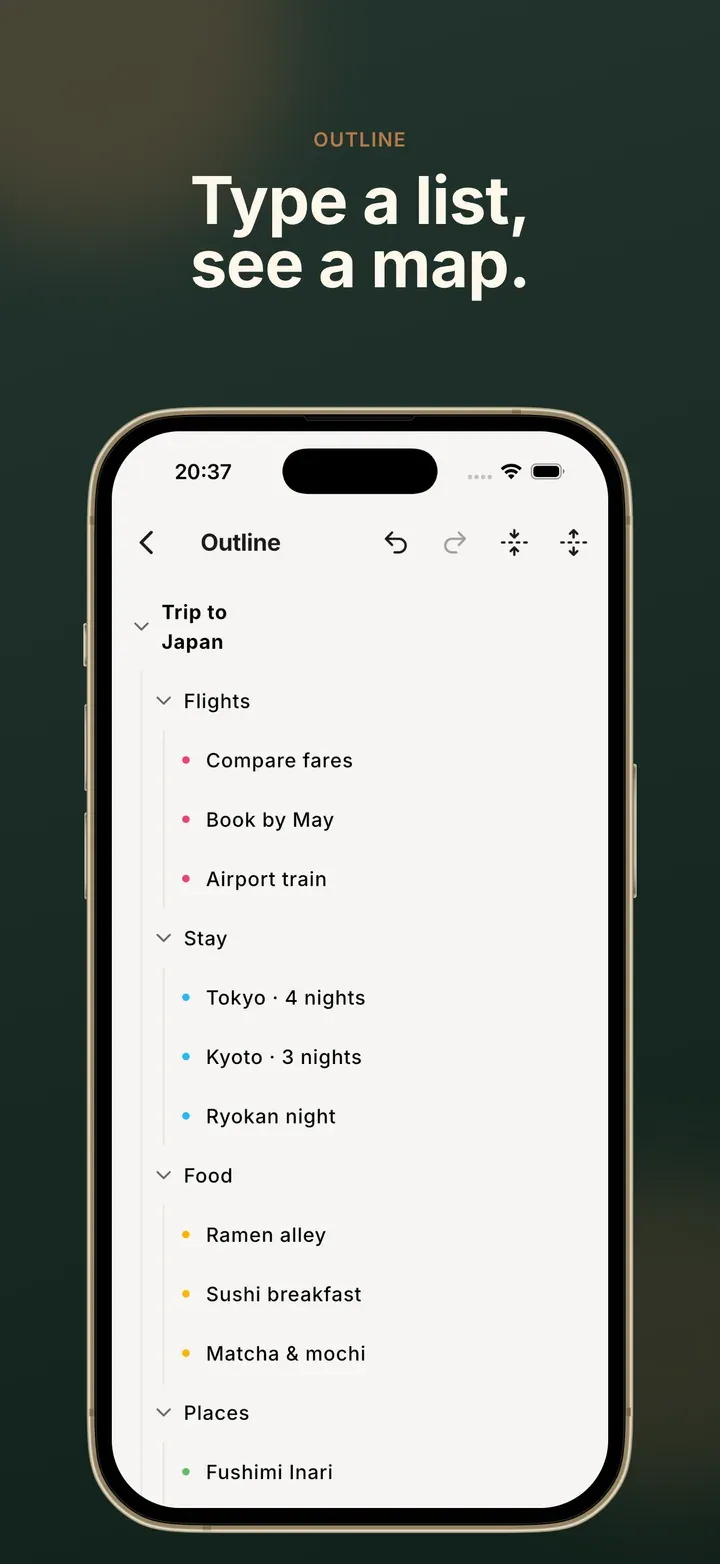
When you tap a row, a toolbar above the keyboard lets you indent, outdent, add a sibling or child, make a task, or move the row up and down. The keyboard stays up the whole time. You can also:
- Press return to add the next row. With the cursor mid-line, return splits the row in two.
- Drag a row sideways to change its level.
- Long-press a row’s bullet to move the whole branch.
- Long-press a row’s text to select several rows, then indent, tick or delete them together.
- Long-press Task to turn a whole branch into a checklist.
The outline always lists every topic, even ones Hide ticked tasks has taken off the canvas. That makes it the place to untick something.
Deleted maps go to the Trash for 30 days before they are removed for good. The toast that appears when you delete a map has an Undo button. After that, open Settings → Trash to restore the map, delete it straight away, or empty the Trash.
Related
Section titled “Related”- Tips and shortcuts: faster ways to do all of this
- Import, export and back up: getting maps in and out
 Mind Map: Smart Mind
Made by MyGems · © 2026 MyGems