
Make a map with AI
AI in Smart Mind does two things: it can start a whole map from a sentence, and it can add sub-topics under a topic you pick. AI explains what it will and won’t do. This guide is the how-to.
Start a map from a sentence
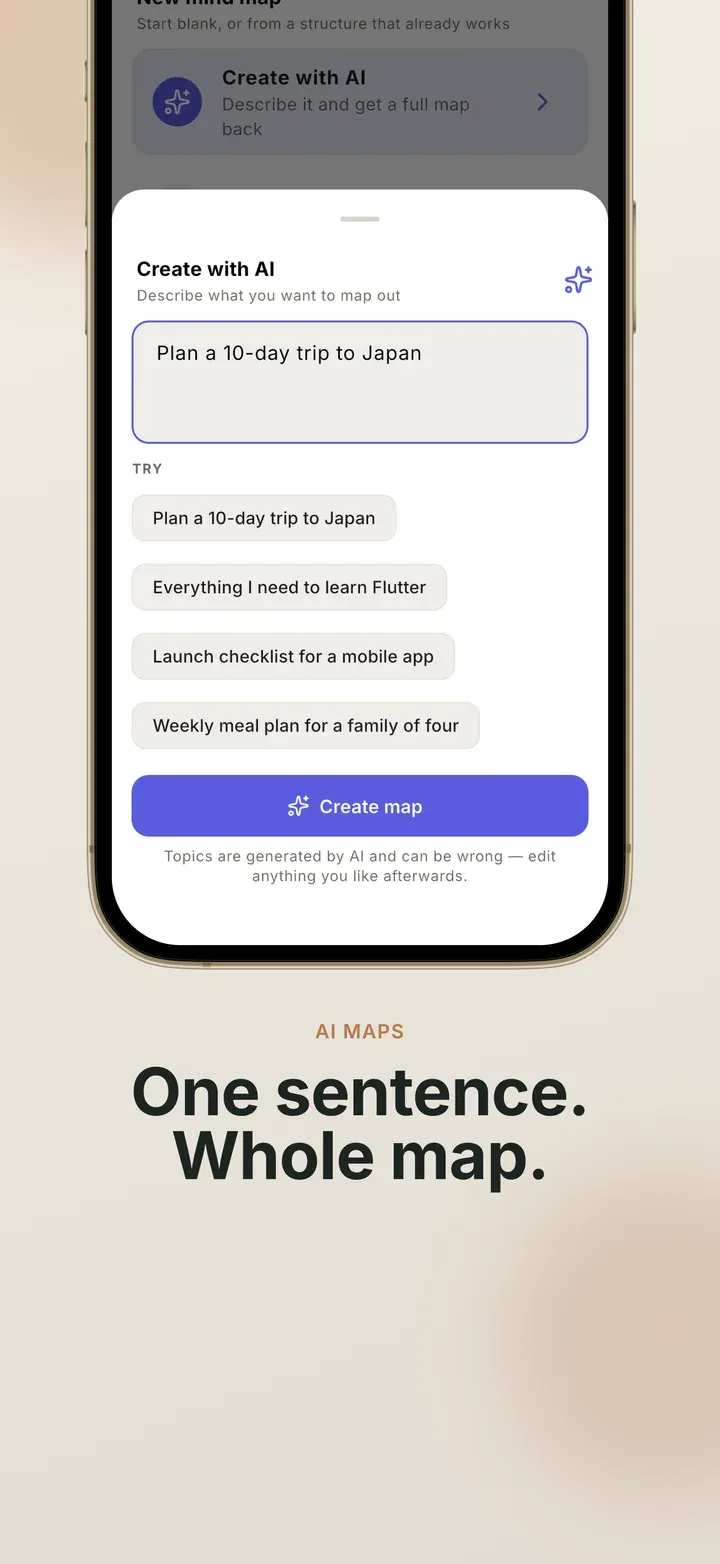
Section titled “Start a map from a sentence”- In the library, tap +, then Create with AI.
- Describe what you are thinking about, for example
Plan a 10-day trip to Japan. If you are stuck, tap one of the examples under Try. - Tap Create map. It takes a few seconds.
The new map opens in the editor. It has a central topic, a handful of branches, and sub-topics under some of them, arranged with your default layout and theme. From here on it is an ordinary map: rename, move, delete and restyle whatever you like, and undo works as usual.
Getting a better first draft
Section titled “Getting a better first draft”- Say what the map is for.
Revision plan for a biology exam in three weeksgives you more to work with thanbiology. - Name the parts you want.
Pros and cons of moving to Lisbon, including cost, work and familysteers the branches. - Keep it to a paragraph at most. The box accepts up to 1000 characters. The size of the map is fixed, so asking for “50 topics” makes no difference.
Grow one topic
Section titled “Grow one topic”- Select a topic with a clear name, such as
Kyoto. - Tap ⋯ → Expand. On a tablet, Expand may already be on the toolbar.
- Up to five new sub-topics appear under it, already selected.
Don’t like them? Tap Undo, on the toast or at the top of the screen. All of the new topics go in one step. If the topic was collapsed, expanding opens it so you can see what arrived.
Expand is greyed out on an empty topic, because there is nothing to go on. It also works in the outline view, from the toolbar above the keyboard.
Allowances
Section titled “Allowances”AI is metered. The free version gives you enough requests to try both actions properly. Pro raises the allowance to a level meant for daily use. If you reach a limit, the app tells you whether it is a short pause or the end of the day’s allowance.
On the free version, a map made with AI counts toward your three maps like any other. If you already have three, the app tells you before the request is sent, so none of your allowance is wasted.
If it doesn’t work
Section titled “If it doesn’t work”- “You’re offline”: AI is the one feature that needs an internet connection. Connect and tap Retry. The rest of the app works offline.
- No AI buttons at all: AI is unavailable on this copy of the app right now. The buttons are hidden rather than left there to fail.
Related
Section titled “Related”- AI: what is sent, and what AI will not do
- Your first map: the same thing, by hand
 Mind Map: Smart Mind
Made by MyGems · © 2026 MyGems